select classification,
sum(case when strftime('%Y', acquisition_date) = '2014' then 1 else 0 end) as '2014',
sum(case when strftime('%Y', acquisition_date) = '2015' then 1 else 0 end) as '2015',
sum(case when strftime('%Y', acquisition_date) = '2016' then 1 else 0 end) as '2016'
from artworks
group by classification
order by classification
문제를 풀면서 2014, 2015, 2016 컬럼을 구하는 계산이 각각 다른데, 이 부분을 어떻게 하나의 테이블 안에 표시할 것인가에 대해 고민했음.
각 컬럼에 대한 값을 구한 별개의 테이블을 만들어서 조인을 해야하나 싶었지만, 그러면 독립된 테이블이 3개여서 쿼리문도 좀 지저분하고 '이게 맞나'싶을 것 같아서 ..
근데 생각해보니까 이미 문제명에 답이 있었음. 집계 함수 쓰면 해결될 것을 ....
CASE WHEN 구문은 조건에 따른 값을 활용하여 새로운 열 생성 / 열 집계를 도움 (여기선 열 집계의 역할로 사용)
구해야 하는 것은 주어진 벽돌들 중 높이가 최대가 되도록 쌓을 때, 쓰인 벽돌의 개수와 각 벽돌의 순서 (단, 순서를 출력할 때에는 제일 위에 쌓인 벽돌의 순서부터 출력해야함)
벽돌을 쌓을 때의 규칙은 아래와 같음
벽돌은 회전시킬 수 없다. 즉, 옆면을 밑면으로 사용할 수 없다.
밑면의 넓이가 같은 벽돌은 없으며, 또한 무게가 같은 벽돌도 없다.
벽돌들의 높이는 같을 수도 있다.
탑을 쌓을 때 밑면이 좁은 벽돌 위에 밑면이 넓은 벽돌은 놓을 수 없다.
무게가 무거운 벽돌을 무게가 가벼운 벽돌 위에 놓을 수 없다
문제 풀이
벽돌을 쌓을 수 있을지 없을지를 결정하는 요소가 '밑면의 넓이'와 '무게'이므로, 우선 둘 중에 하나를 기준으로 배열을 정렬해둠
정렬 이후 Dynamic Programming(동적 계획법)을 활용하여, 쌓을 수 있는지 없는지에 대한 판단을 요소별로 쪼개어 수행
Swift를 활용한 풀이
import Foundation

let n = Int(readLine()!)! // 벽돌의 개수
var origin:[[Int]] = [] // 벽돌들의 정보

// 벽돌 정보 입력 받기
for _ in 0..<n {
    origin.append(readLine()!.split(separator: " ").map{Int(String($0))!})
}
// 벽돌의 밑면의 넓이를 기준으로 내림차순 정렬
var sorted_list = origin.sorted { $0[0] > $1[0] }

var dy:[Int] = [] // 높이합 최대 기록 배열
var hist:[Int:[Int]] = [:] // 각 항목 별 쌓을 수 있는 벽돌의 무게 정보 - [s:[w1, w2, ...]]

// 밑면이 가장 넓은 벽돌(맨 앞의 벽돌)에 대한 정보는 기본적으로 저장 (비교 대상이 없기 때문)
dy.append(sorted_list[0][1])
hist[sorted_list[0][0]] = [sorted_list[0][2]]

// 최대값에 관한 정보는 모두 밑면이 가장 넓은 벽돌(맨 앞의 벽돌)의 값으로 초기화
// (0과 빈 배열로 초기화해두면, 0번째 값을 고려하는 경우가 없어지기 때문)
var max_h_sum = dy[0] // 높이 합의 최대값
var max_h_list:[Int] = hist[sorted_list[0][0]]! // 높이 합이 최대인 경우의 높이값 요소 배열

// 2번째 벽돌 정보부터 살펴보면서, 이전 벽돌 중 자신이 위에 쌓일 수 있을지를 판단
for i in 1..<n {
    var max_h = 0
    var temp:[Int] = []
    for j in (0..<i).reversed() {
        // 이전 벽돌 중 자신보다 무게가 무거운 벽돌이면서, 높이의 합이 최대치인 경우의 정보를 임시 저장
        if (sorted_list[i][2] < sorted_list[j][2] && dy[j] > max_h) {
            max_h = dy[j]
            temp = hist[sorted_list[j][0]]!
        }
    }
    // 바로 위 for문에 의해 결정된 '높이의 합이 최대이면서, 무게가 자기자신보다 무거운 벽돌'의 정보를 기반으로 dy와 hist 초기화
    temp.append(sorted_list[i][2])
    hist[sorted_list[i][0]] = temp
    dy.append(max_h + sorted_list[i][1])

    // dy와 hist의 정보가 추가될 때마다, 각 높이의 합과 그것을 이루는 높이 요소값 배열을 갱신
    if (max_h_sum < dy[i]) {
        max_h_sum = dy[i]
        max_h_list = hist[sorted_list[i][0]]!
    }
}

// 결정된 최대 높이값의 요소 배열을 뒤집고 출력
// (무게를 기준으로 내림차순 된 배열에서 값을 찾았기때문)
max_h_list = max_h_list.reversed()
print(max_h_list.count)
for w in max_h_list {
    for i in 0..<origin.count {
        if(origin[i][2] == w) { print(i+1) }
    }
}
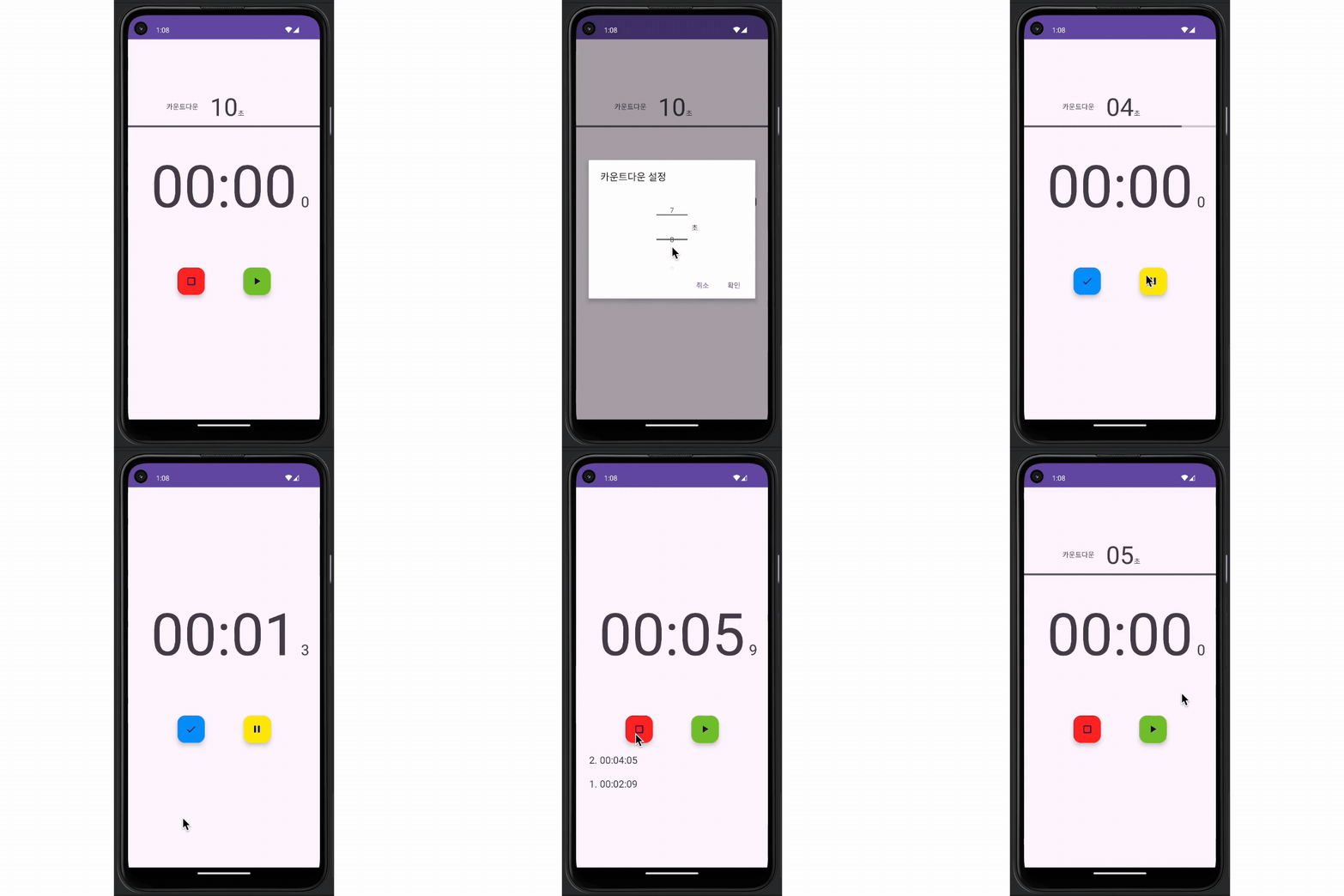
private fun lap() {
    if (currentDeciSecond == 0) return
    val container = binding.lapContainerLinearLayout
    TextView(this).apply {
        textSize = 20f
        gravity = Gravity.CENTER

        val min = currentDeciSecond.div(10)/60
        val sec = currentDeciSecond.div(10)%60
        val deciSec = currentDeciSecond%10

        text = "${container.childCount.inc().toString()}. " + String.format(
            "%02d:%02d:%02d",
            min,
            sec,
            deciSec
        )
        setPadding(30)
    }.let { lapTextView ->
        container.addView(lapTextView, 0)
    }
}
workThread와 runOnUiThread / post 메소드를 이용한 UI 작업 비동기 처리
private fun start() {
    timer = timer(initialDelay = 0, period = 100) {
        if (currentCountdownDeciSecond == 0) {
        	// UI 업데이트가 아닌 다른 작업의 비동기 처리
            currentDeciSecond += 1

            val min = currentDeciSecond.div(10)/60
            val sec = currentDeciSecond.div(10)%60
            val deciSec = currentDeciSecond%10

            // runOnUiThread를 활용한 UI 업데이트 작업 진행
            runOnUiThread {
                binding.timeTextView.text = String.format("%02d:%02d", min, sec)
                binding.tickTextView.text = deciSec.toString()

                binding.countdownGroup.isVisible = false
            }
        } else {
        	// UI 업데이트가 아닌 다른 작업의 비동기 처리
            currentCountdownDeciSecond -= 1
            val sec = currentCountdownDeciSecond/10
            val progress = (currentCountdownDeciSecond/(countdownSecond * 10f)) * 100

			// post 메소드를 활용한 UI 업데이트 작업 진행
            binding.root.post {
                binding.countdownTextView.text = String.format("%02d", sec)
                binding.countdownProgressBar.progress = progress.toInt()
            }
        }
        ...
    }
}
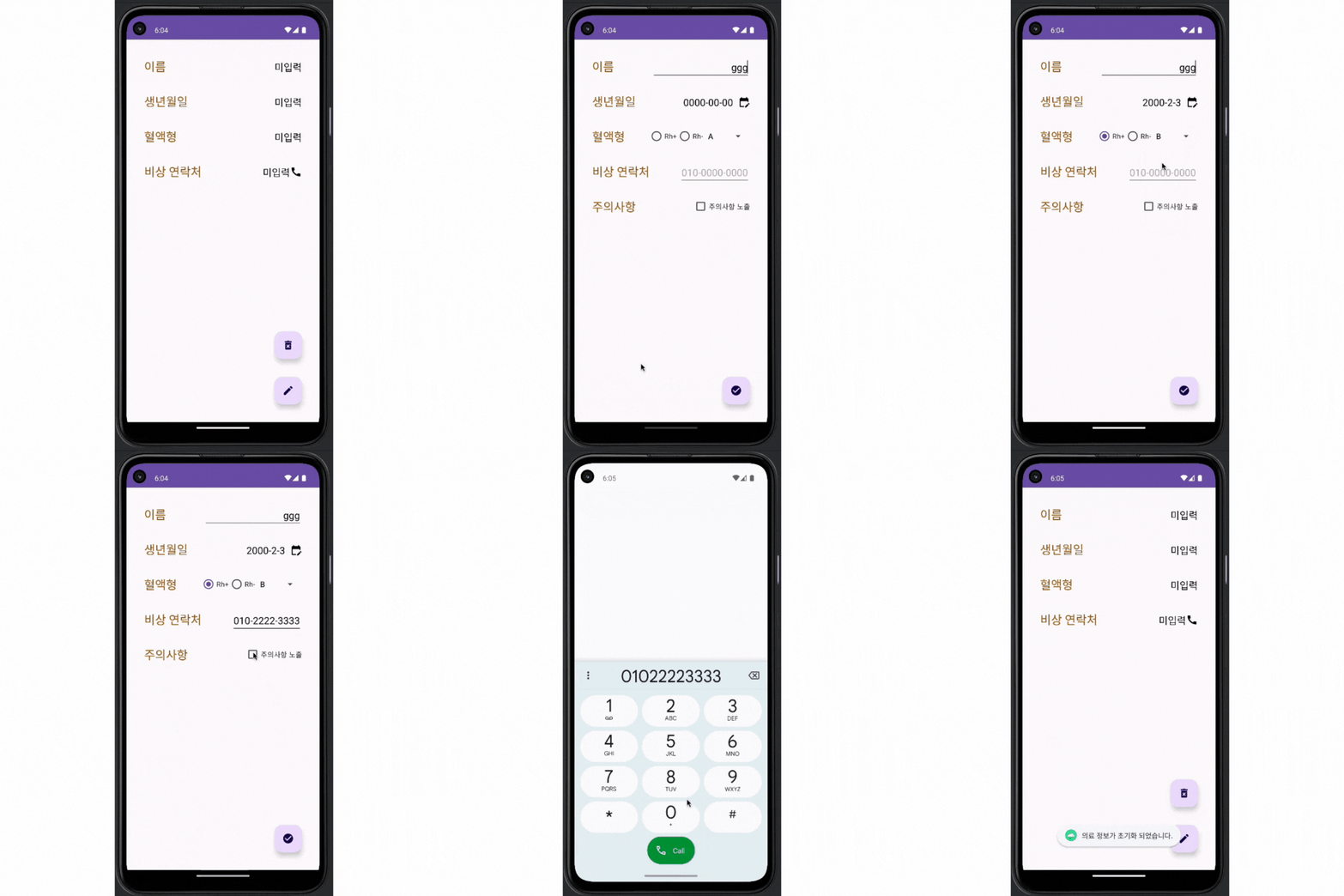
// Rh+, Rh- 중 하나를 선택하는 RadioButton 그룹

<RadioGroup
    android:id="@+id/bloodTypeRadioGroup"
    android:layout_width="wrap_content"
    android:layout_height="wrap_content"
    android:orientation="horizontal"
    app:layout_constraintBottom_toBottomOf="@id/bloodTypeTextView"
    app:layout_constraintEnd_toStartOf="@id/bloodTypeSpinner"
    app:layout_constraintStart_toStartOf="@id/guideline"
    app:layout_constraintTop_toTopOf="@id/bloodTypeTextView">

    <RadioButton
        android:id="@+id/bloodTypePlus"
        android:layout_width="wrap_content"
        android:layout_height="wrap_content"
        android:text="Rh+" />

    <RadioButton
        android:id="@+id/bloodTypeMinus"
        android:layout_width="wrap_content"
        android:layout_height="wrap_content"
        android:text="Rh-" />
</RadioGroup>
// A, B, AB, O형 중 하나를 선택하는 Spinner

<Spinner
    android:id="@+id/bloodTypeSpinner"
    android:layout_width="0dp"
    android:layout_height="wrap_content"
    app:layout_constraintBottom_toBottomOf="@id/bloodTypeTextView"
    app:layout_constraintEnd_toEndOf="@+id/nameEditText"
    app:layout_constraintTop_toTopOf="@id/bloodTypeTextView" />
Intent를 이용한 화면 전환 및 전화앱 연결 구현
override fun onCreate(savedInstanceState: Bundle?) {
        super.onCreate(savedInstanceState)
        binding = ActivityMainBinding.inflate(layoutInflater)
        setContentView(binding.root)

        binding.moveToInputActivity.setOnClickListener {
            val intent = Intent(this, EditActivity::class.java)
            startActivity(intent)
        }

        ...

        binding.moveToSosCallLayer.setOnClickListener {
            with(Intent(Intent.ACTION_VIEW)) {
                val phoneNum = binding.sosPhoneValueTextView.text.toString().replace("-","")
                data = Uri.parse("tel:$phoneNum")
                startActivity(this)
            }
        }
    }